Paso 1: conectá tu cuenta de Customer.io
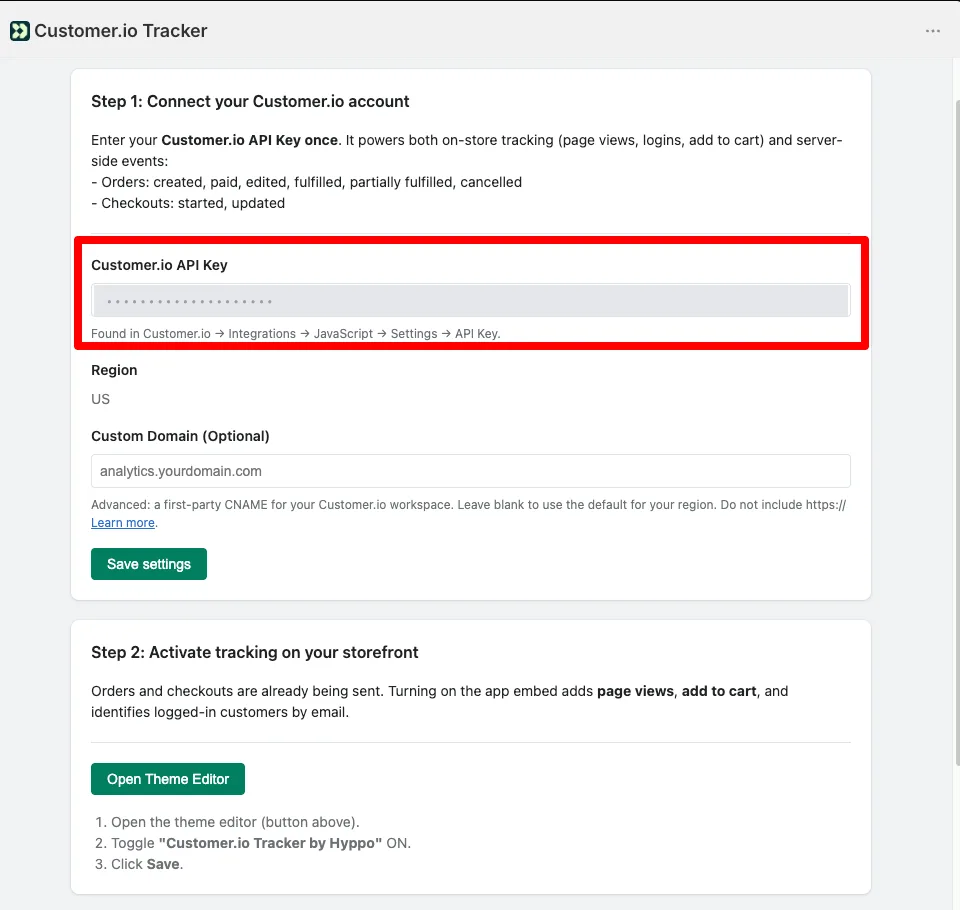
Abrí la app desde el admin de Shopify y pegá tu Customer.io API Key. La creás en Customer.io, en Integrations → Add Integration → Customer.io API: le pones un nombre y ahí mismo te muestra la API Key.
- Se carga una sola vez y cubre las dos mitades del tracking.
- La región de tu workspace no se elige: la app la detecta desde la key y la muestra debajo del campo.
- Si la key no existe en tu cuenta, la app te lo dice al guardar en vez de fallar en silencio. El error más común es pegar el Site ID o la Track API Key, que son de Journeys y no sirven acá.
- Custom Domain es opcional: hace que las llamadas salgan por tu propio dominio, para que algunos bloqueadores no las corten.
Paso 2: activá el tracking en tu tienda
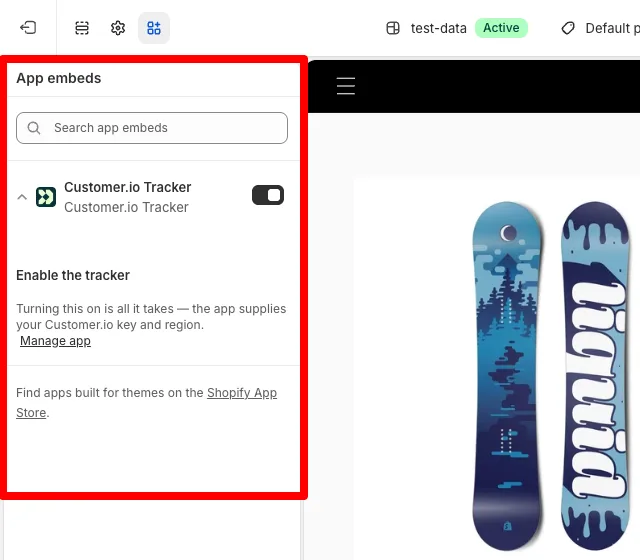
La app funciona como Theme Extension, así que hay que habilitarla desde el editor de temas. No hay nada que completar ahí: la key la provee la app.
- Abrí el editor de temas. En el admin de Shopify, Tienda online → Temas → Personalizar. El panel de la app también tiene un botón que te lleva directo.
- Entrá a App embeds. En la barra lateral izquierda, el ícono de App embeds.
- Activá el tracker. Buscá Customer.io Tracker y poné el switch en ON.
- Guardá. Botón Save, arriba a la derecha.
Qué se trackea
Las dos mitades son independientes y conviene entender qué aporta cada una:
- Sin tocar el tema, desde que cargás la key: órdenes (creada, pagada, editada, preparada, preparada parcialmente, cancelada) y checkouts (iniciado, actualizado). Vienen directo de Shopify a nuestro servidor.
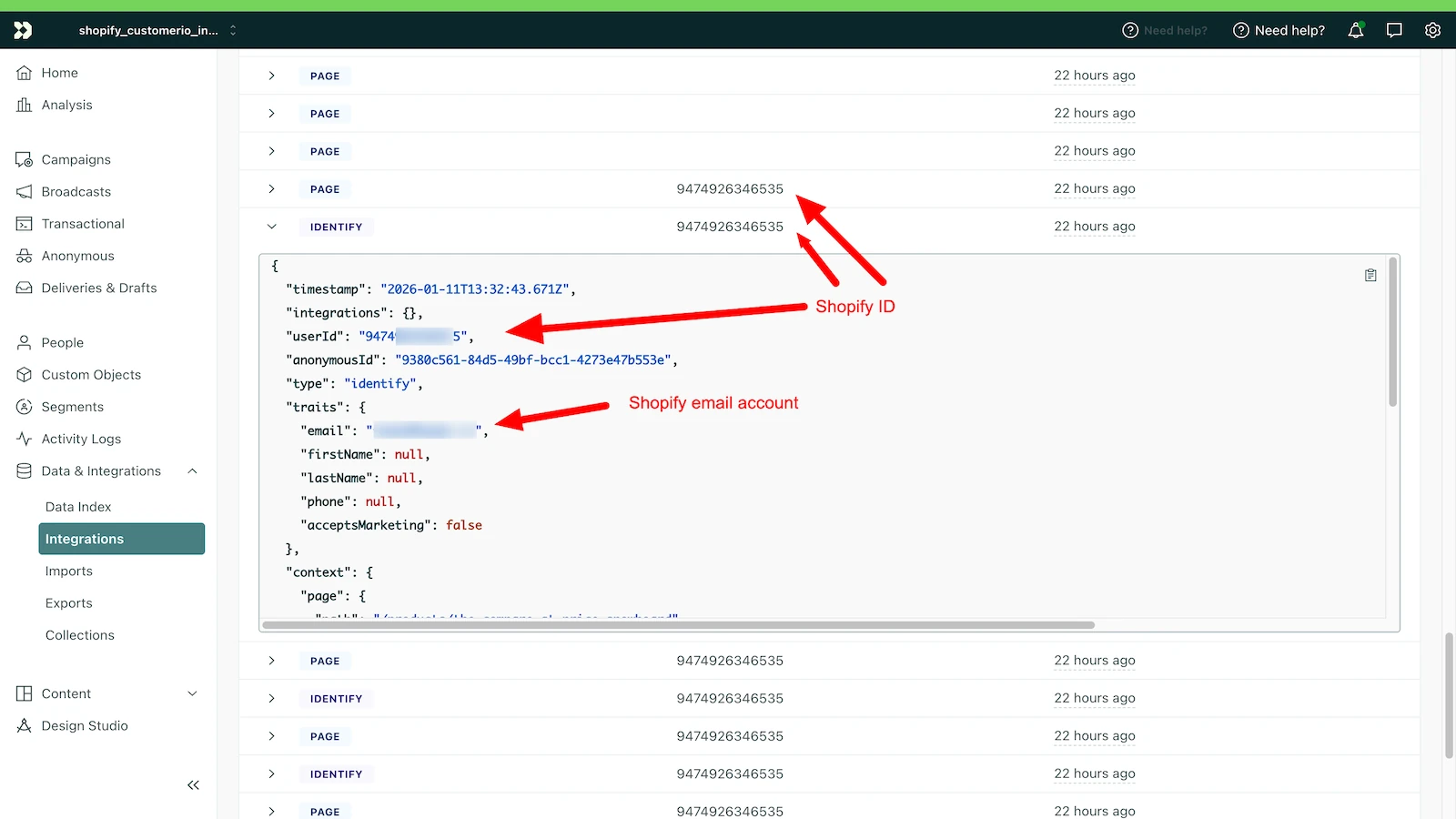
- Con el app embed activado, lo que solo el navegador puede ver: page views, add to cart, y el identify por email de los clientes logueados, que es lo que pega la navegación con las compras.
Si dejás el embed apagado, las visitas anónimas y la actividad de carrito no se registran en ningún lado.
Cómo verificar que llegan los datos
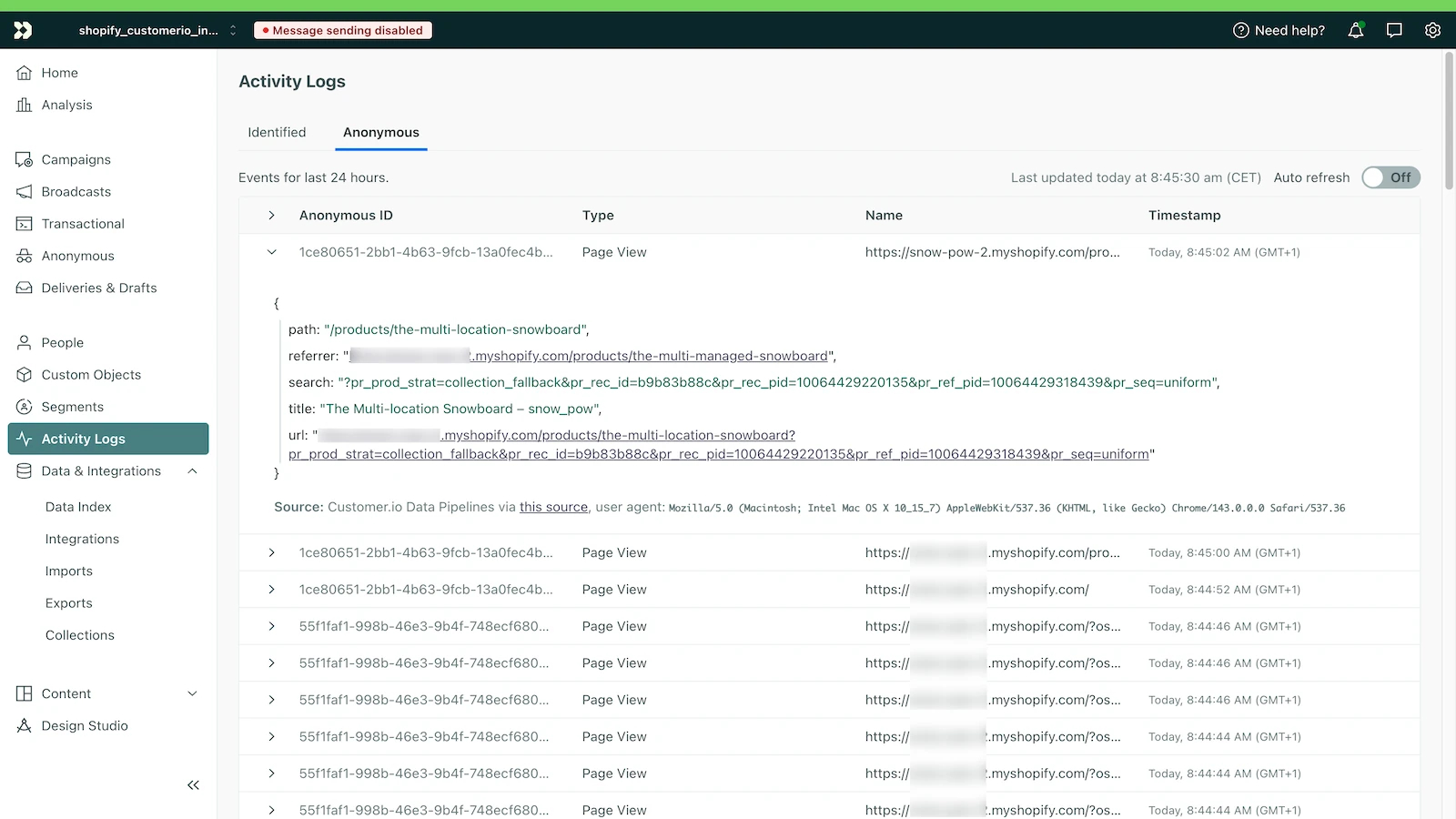
En Customer.io, Activity Logs muestra los eventos a medida que entran. La pestaña Anonymous tiene a los visitantes que todavía no se identificaron; Identified, a los que ya llegaron con email o ID de Shopify.
Preguntas frecuentes
¿Dónde encuentro mi API Key de Customer.io?
En Customer.io, en Integrations → Add Integration → Customer.io API: le pones un nombre y ahí mismo te muestra la API Key. No es el Site ID ni la Track API Key de Workspace Settings: esas dos son de Journeys y no funcionan con esta app.
¿Tengo que elegir la región US o EU?
No. Customer.io tiene dos regiones y una key pertenece a una sola. La app la detecta desde tu key y la muestra debajo del campo, así que no hay forma de equivocarse.
Guardé la key pero no veo page views en Customer.io.
Las órdenes y los checkouts llegan sin configurar nada, pero las page views y el add to cart necesitan el app embed activado en el editor de temas. Si el embed está apagado, la navegación no se registra.
¿Necesito pegar la key en el tema también?
No. Antes había dos campos en el editor de temas y ya no existen: la key se carga una sola vez en el panel de la app y el tema la toma de ahí.
¿Qué pasa si la key está mal?
La app la verifica contra Customer.io cuando guardás y no te deja guardar una key que no exista en tu cuenta. Antes se aceptaba cualquier texto y los eventos se perdían sin ningún error.
¿Necesitás ayuda?
Si tenés problemas para activar la app o los datos no aparecen en Customer.io, escribinos a hello@hyppo.io. La ficha de la app está en la Shopify App Store.
También te puede interesar
Legales y privacidad
La app procesa datos únicamente para conectar Shopify con Customer.io. No almacenamos datos personales de tus clientes en servidores externos.